Why Is There a Bot in My Meeting?
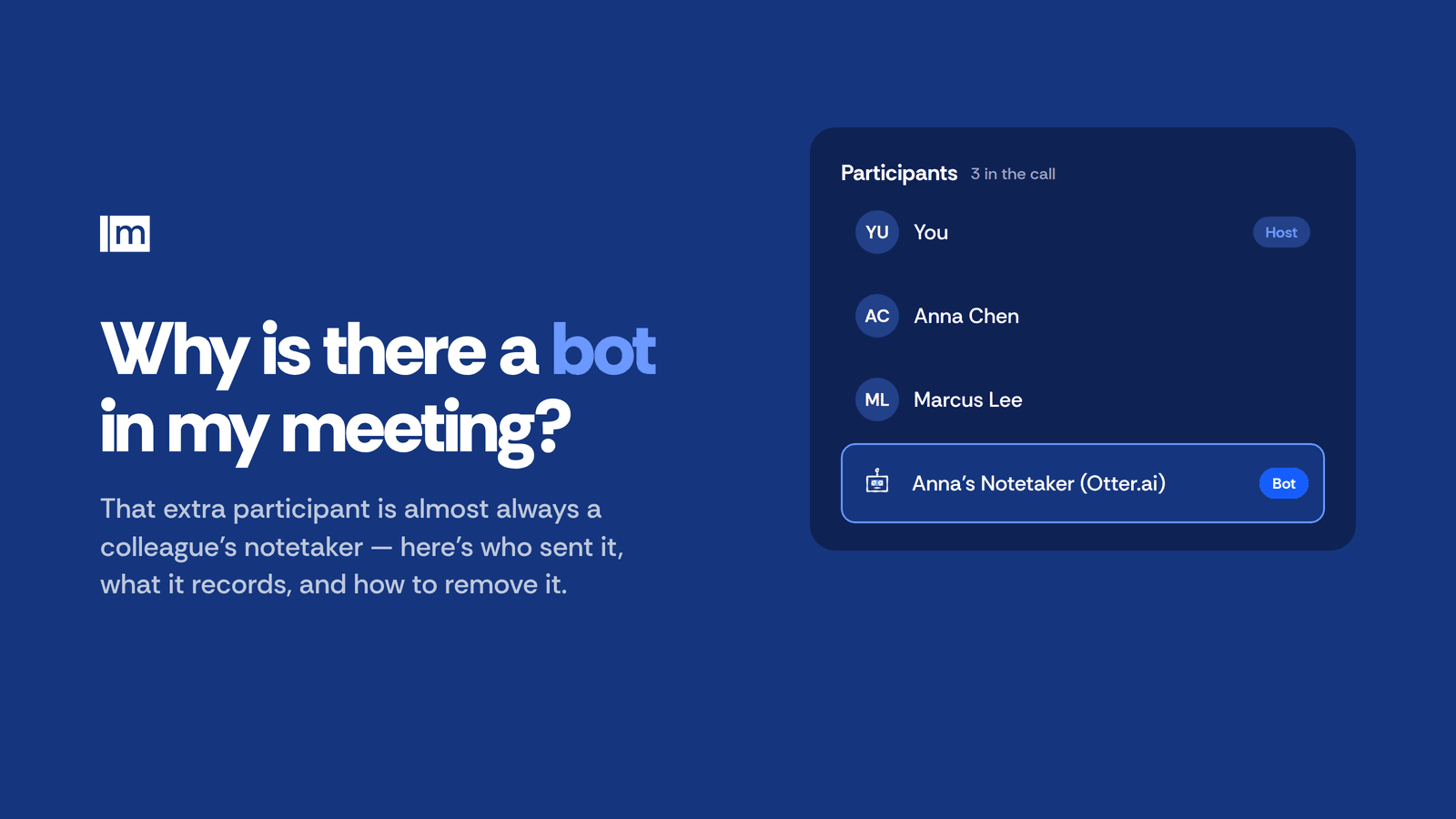
The short answer: The bot is an AI notetaker that one of the participants connected to the meeting. It did not invite itself: someone in the call — usually a colleague, sometimes the host — linked a Google or Microsoft calendar to a notetaker app such as Otter, Fireflies, Fathom, Read AI, or tl;dv, and the app sent its recording bot to the event automatically. The bot joins as a named participant, so you can see exactly which tool it is and usually whose it is: Otter appears as "[Name]'s Notetaker (Otter.ai)", Fireflies as "Fireflies.ai Notetaker", Fathom as "[Name]'s Fathom Notetaker", Read AI as "read.ai meeting notes", and tl;dv as "[First name]'s AI Notetaker". It is there to record the audio (and in some cases video), build a transcript, and hand a summary to the person who invited it. Any host can remove it from the participant list the way they would remove any other attendee, and Otter and Fireflies also leave when someone types a chat command. A bot in the room feels like an intrusion, but it is almost always a colleague's notetaker doing exactly what that colleague set up.
The reason it keeps happening is the calendar connection. Break that, and the bot stops walking in.
At a glance
| Bot | What you see in the participant list | What it records | How to remove it mid-call |
|---|---|---|---|
| Otter | "[Name]'s Notetaker (Otter.ai)" | Audio and a live transcript | Remove from the participant list, or type "stop otter" in the chat |
| Fireflies | "Fireflies.ai Notetaker" ([email protected]) | Audio and a transcript | Remove from the participant list, or type "/ff leave" in the chat |
| Fathom | "[Name]'s Fathom Notetaker" | Video, audio, and transcript | Remove from the participant list |
| Read AI | "read.ai meeting notes" | Audio and a transcript | Remove from the participant list |
| tl;dv | "[First name]'s AI Notetaker" | Audio and a transcript | Remove from the participant list |
Bot names and behavior checked 22 Nov 2026 against each vendor's help pages.
What is the bot in my meeting?
The "bot" is an AI meeting notetaker: software that joins a video call as an extra participant, records the conversation, and produces a transcript, summary, and action items for the person who connected it. It is not a person, and it is not the meeting platform itself recording. It is a third-party tool — most often Otter, Fireflies, Fathom, Read AI, or tl;dv — and it shows up as a visible attendee rather than recording silently in the background.
That visibility is deliberate. Fathom's help center states that its bot "appears in the participant list, so everyone in the call can see the meeting is being recorded." A notetaker that joins as a participant has to be admitted like any other attendee, which is also why a bot can sit in a meeting you are certain nobody invited.
A bot is different from a platform's built-in transcription. Zoom AI Companion and Microsoft Teams' own transcription do not add a participant — they run inside the platform and show a notice or recording banner to everyone in the call. The bot you are asking about is a third-party participant, listed by name in the participant list like any other person.
Why did a bot join my meeting?
A bot joins because someone connected a calendar to a notetaker app and left auto-join switched on. Otter, Fireflies, Fathom, Read AI, and tl;dv all work the same way: a person connects a Google or Microsoft calendar, the app reads the events, and when a scheduled meeting has a video link, the app sends its bot to join automatically. A third-party explainer of the Otter flow describes it in those terms: the account connects a calendar, the events sync, and the notetaker joins scheduled events automatically.
That is why the bot can walk into a meeting that nobody on the call added it to. The host did not invite it, and the host may not even know the tool exists — the bot arrives because an attendee's calendar told it to. The connection is an OAuth grant: when a Google or Microsoft calendar is linked to the notetaker app, the app gets permission to read events and act on them, which is what lets it detect a meeting and join without anyone doing anything inside the call. That is also why the bot is usually named after a person — the name tells you whose calendar pulled it in.
Who invited the bot?
Look at the name in the participant list. Otter names its bot "[Name]'s Notetaker (Otter.ai)", Fathom uses "[Name]'s Fathom Notetaker", and tl;dv uses "[First name]'s AI Notetaker" — so the name is normally the person whose account sent the bot. Fireflies is the exception: it appears as a generic "Fireflies.ai Notetaker", invited from the address [email protected], so the name alone does not reveal who owns it.
If the name does not match anyone on the call, the account owner may use a different display name, or the calendar invite may have been forwarded. The reliable way to find out is to ask in the chat, or to ask the meeting organizer.
What does the bot record?
Most meeting bots record audio and produce a transcript plus a summary and action items. Fathom's help center states that its bot records video, audio, and transcript. The recording goes to the notetaker app, where the person who invited the bot can review, share, and search it — and where that person can share it onward, which is worth remembering if something sensitive is said while the bot is in the room.
If a bot is sitting in the call, it is recording unless someone has turned that off. Removing it from the call stops the recording for that meeting.
Is the bot recording me?
Assume yes. A bot in the participant list is there to capture audio, and the consent rules that apply to recording a meeting by any means apply to a bot the same way — in some places everyone must consent, in others one party's consent is enough. Meetbook's guide to whether it is legal to record a meeting walks through the one-party vs all-party rules by state and country.
How do I remove the bot from the meeting?
Remove it from the participant list, the same way you remove any other attendee:
- Zoom: open the participant list, click More next to the bot, and choose Remove. The host or co-host can do this.
- Google Meet: open the participant list, click ⋮ next to the bot, and choose Remove from the call.
- Microsoft Teams: open the participant list, click … next to the bot, and choose Remove from meeting. The organizer or a presenter can do this.
Two tools also accept a chat command that any participant can send, not just the host. Otter's help center says typing "stop otter" in the Zoom, Google Meet, or Microsoft Teams chat removes the Otter Notetaker. Fireflies documents the same for its bot with "/ff leave". For the full, tool-by-tool steps, Meetbook's guides cover removing the Otter bot and stopping Fireflies from joining meetings.
How do I stop it from joining every meeting?
The person who owns the bot turns off auto-join in their notetaker account, or disconnects the calendar. Because the bot is tied to one person's calendar, the lasting fix has to happen on that person's account — removing the bot from a single call only removes it from that call. The owner-side steps are in Meetbook's guides to removing the Otter bot and stopping Fireflies from joining meetings, and the same pattern applies to Fathom, Read AI, and tl;dv: turn off the auto-join setting, or revoke the calendar connection entirely. The trigger to look for is a calendar still connected with auto-join on; that is the single switch that keeps sending a bot into the room.
Can a bot join without anyone admitting it?
On Zoom and Google Meet, a bot joins like any invited attendee, which is why it can appear to slip in unnoticed. Microsoft Teams handles it differently: Microsoft's documentation on external bots states that participants detected as bots are placed in the meeting lobby regardless of the lobby setting, and the organizer or a presenter must explicitly admit them. Teams also shows a reminder about the risk before the bot is let in, so the room is warned rather than surprised.
Meeting notes without a bot in the call
There is a way to get a transcript and summary without any bot joining: record the meeting on the device instead of sending a participant in. Meetbook's Chrome extension records the meeting tab with no bot in the call, so there is nothing to admit and nothing to remove. Meetbook's calendar notetaker joins as a participant only for meetings where the account owner is not on a laptop. For the two approaches side by side, read Meetbook's bot vs botless explainer, and the Google Meet with no bot guide.
Record meetings with no bot in the callFree plan, no card needed.Try it free
FAQ
What is the bot that joins my meeting?
An AI notetaker — usually Otter, Fireflies, Fathom, Read AI, or tl;dv — sent by a participant who connected a calendar to the app.
Is the bot a person?
No. It is software that joins as a participant to record the audio and build a transcript for whoever connected it.
Why does the bot join even when I did not invite it?
Because an attendee connected a calendar with auto-join switched on. The app sends its bot to every scheduled meeting on that calendar that has a video link.
Can I tell who invited the bot?
Usually. Otter, Fathom, and tl;dv name their bots after the account owner. Fireflies uses a generic name, so for Fireflies you have to ask in the chat or ask the organizer.
How do I kick the bot out?
Remove it from the participant list (Zoom More → Remove, Meet ⋮ → Remove from the call, Teams … → Remove from meeting), or type "stop otter" for Otter or "/ff leave" for Fireflies.
Does removing the bot stop it from joining again?
No. Removing it ends that one meeting's recording. To stop it joining future meetings, the owner must turn off auto-join or disconnect the calendar.
Is the bot recording everyone?
Yes. If a bot is in the call it is recording audio (and, for Fathom, video) unless the owner has disabled it. The same consent rules apply as for any meeting recording.
How do I get meeting notes without a bot?
Use a botless recorder that captures the meeting on the device. Meetbook's Chrome extension records the meeting tab with no bot in the call; see the bot vs botless comparison.