How to Remove the Otter Bot From a Meeting
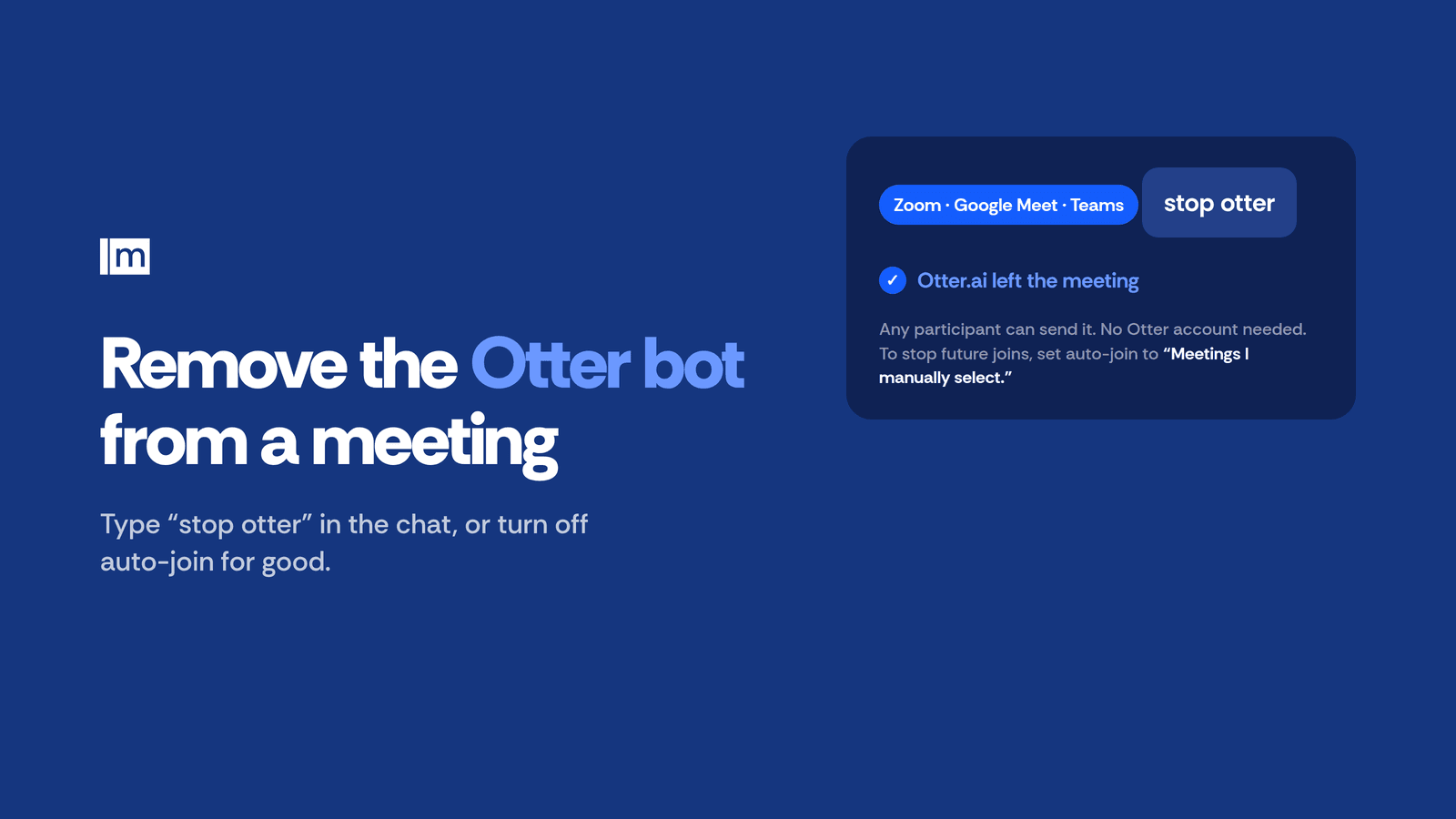
The short answer: To remove the Otter bot from a meeting that is already running, type "stop otter" in the Zoom, Google Meet, or Microsoft Teams meeting chat. Any participant can send it, no Otter account is required, and every Otter Notetaker in the call is removed immediately. To stop Otter from joining future meetings, turn off auto-join in the Otter account: Integrations → Meetings → Default auto-join settings → "Meetings I manually select." To remove Otter's access entirely, disconnect the calendar in Otter and revoke Otter's access from your Google or Microsoft account. If a company wants Otter gone everywhere, a Zoom, Microsoft Teams, or Google Workspace admin can disable or block the app account-wide.
The bot shows up in the first place because Otter is connected to a calendar, not because the meeting host invited it. Fix that connection and the bot stops appearing.
At a glance
| What you want | Where to do it | Who can do it |
|---|---|---|
| Remove Otter from a live call | Type "stop otter" in the chat | Any participant, no Otter account needed |
| Remove Otter from a live call (alternate) | Open the Notetaker link in chat, then Stop Notetaker | Any participant (if chat sharing is on) |
| Kick the bot out as a participant | Zoom / Meet / Teams participant list | Zoom host or co-host; Teams organizer or presenter; Meet depends on permissions |
| Stop it joining future meetings | Otter auto-join settings → "Meetings I manually select" | The Otter account owner |
| Stop every future join at once | Disconnect the calendar in Otter | The Otter account owner |
| Block it for the whole company | Zoom Marketplace admin / Teams admin center / Google Workspace admin | A workspace or tenant admin |
Why does the Otter bot keep joining my meetings?
Otter Notetaker joins Zoom, Google Meet, and Microsoft Teams meetings through a synced calendar. When an event on the connected calendar has a meeting link and auto-join is switched on, Otter sends its notetaker to the call to record and transcribe. Otter's help center describes the feature as joining "via your synced calendar events." The trigger is the calendar connection, not the meeting itself, which is why the bot can appear in calls nobody invited it to.
That calendar connection is itself an OAuth grant: when you connect a Google or Microsoft calendar to Otter, you are giving Otter permission to read your events and act on them. That is what lets Otter detect a meeting, resolve the link, and send a notetaker without you doing anything in the meeting. Removing the bot for good means addressing both layers: the auto-join setting inside Otter, and the calendar access granted to Otter from the Google or Microsoft side.
It also explains the most common fix. Turning off auto-join stops Otter from dispatching the notetaker to future events. But Otter's help center notes that events you previously toggled on or off individually keep that manual setting, so after changing the default, review your upcoming calendar events and switch off any that still show the notetaker enabled.
How do I know if the Otter bot is in my meeting?
Look at the participant list. Otter's notetaker joins as a named participant, typically "Otter.ai" or "Otter Notetaker," rather than as an anonymous system process, so it shows up in the same people panel as everyone else. On Zoom it appears in the Participants panel, on Google Meet in the people list, and on Microsoft Teams in the roster. If you see a participant you did not invite with an Otter name, that is the notetaker.
The name it carries is a useful clue to whose account sent it. Otter's notetaker can appear under the account owner's name in some setups, which is why a meeting full of colleagues sometimes has an unexplained "Otter" guest. Either way, the removal steps below are the same.
How do I remove the Otter bot from a live meeting?
Type "stop otter" in the meeting chat. Otter's help center states that all meeting participants can send this in the Zoom, Google Meet, or Microsoft Teams chat, and all notetakers are removed immediately. It works from desktop and mobile, and the person sending it does not need an Otter account.
If several Otter notetakers are in the room, "stop otter" removes all of them at once. Otter's help center calls this out and recommends the participant-removal methods below when you want to remove just one.
The second option is the Otter conversation link. When the Otter account owner has enabled Notetaker chat sharing, there is a Notetaker link in the meeting chat. Open it, click Stop Notetaker, then Yes, turn it off. Otter users can also stop the notetaker from the conversation page in their own account.
How do I remove the Otter bot from Zoom?
Send "stop otter" in the Zoom chat. It works for any participant and removes the notetaker immediately, with no host privileges needed.
To remove it the manual way, the Zoom host or co-host can open the Participants panel and remove Otter Notetaker as a participant. Otter's help center points to Zoom's documentation for the current menu, since Zoom changes its participant controls from time to time. If the bot carries your name, the same steps apply, and the account owner can prevent future joins by turning off auto-join (covered below).
If you are the one running Otter and you simply want it out of Zoom for good, also check Zoom's installed apps: open the Zoom App Marketplace, find Otter.ai under your installed apps, and uninstall it so the integration is removed from the Zoom side as well.
How do I remove the Otter bot from Google Meet?
Type "stop otter" in the Google Meet chat. As with Zoom and Teams, any participant can send it, with or without an Otter account.
Depending on the meeting's permissions, the host or other participants can also remove Otter Notetaker from the people panel. The exact controls follow Google Meet's current interface, which Otter's help center links to rather than restating. Because Otter joins Google Meet through the calendar connection, the lasting fix for Meet is the auto-join setting plus revoking calendar access, both covered below.
How do I remove the Otter bot from Microsoft Teams?
Type "stop otter" in the Teams meeting chat. Any participant can do this, and the notetaker leaves immediately.
The manual route: depending on the meeting's permissions, the organizer or a presenter can remove Otter Notetaker from the participants list. Teams admins can also block the Otter app entirely, which is covered in the org-wide section below. Individual users can remove the Otter app from Teams under the Apps list to stop it from being used on their account.
How do I stop Otter from joining future meetings?
Turn off auto-join in the Otter account. Otter's help center gives two desktop routes to the same setting:
- From the homepage, open the Meetings tab, click AI Notetaker settings, and choose "Meetings I manually select."
- From account settings, go to Integrations → Meetings → Default auto-join settings and choose "Meetings I manually select."
On mobile, tap Account → Account Settings → Meeting settings → Auto-join meetings and choose Manual.
After changing the default, review upcoming calendar events. Events you manually toggled on or off keep that setting, so Otter may still join a specific event unless you switch that event off individually. To remove every future join at once, disconnect the calendar from Otter entirely. These settings are current as of Otter's help center updates dated 4 May 2026 and 7 May 2026 (checked 21 Nov 2026).
How do I remove Otter's access entirely?
The auto-join toggle controls whether Otter dispatches the notetaker. The calendar connection controls whether Otter can see your events at all. For a clean break, do both, then revoke access on the provider side:
- Google: open your Google Account security settings, go to Third-party apps & services, find Otter, and remove its access.
- Microsoft: open your Microsoft account, go to Apps & services (under Privacy), find Otter, and remove it.
This revokes the OAuth grant so Otter cannot read the calendar even if a setting is changed back by mistake. The nuclear option is deleting the Otter account, which Otter's help center lists as a separate article and which permanently removes the account and its recordings.
How do I block Otter for the whole company?
An admin can stop Otter at the platform level so no one on the account can use it:
- Zoom: sign in at marketplace.zoom.us as an admin, open Manage, then Admin App Management → Apps on Account, find Otter.ai, and disable or remove it. Zoom admins can also require apps to be approved before users add them (Zoom community thread, 13 Jun 2025).
- Microsoft Teams: in the Teams admin center, open Teams apps → Manage apps, select Otter, and block it, or use an app permission policy to control which apps each user can install (Microsoft Learn).
- Google Workspace: in the Google Admin console, open Apps → Google Workspace Marketplace apps and set whether users can install Marketplace apps, or manage the allowlist to keep Otter off the approved list (Google Workspace admin help).
These steps stop Otter from being installed or joined at the tenant level, which is stronger than any per-meeting removal because it applies before a call even starts. They are also the only way to keep Otter out when the person who connected it is not the person who runs the meeting.
If you still want meeting notes, without a bot in the call
Every fix above is about removing a bot that had to be let into the room. Otter Notetaker joins as a visible participant, so someone has to admit it and everyone on the call can see it sitting there. Meetbook takes a different route: the Meetbook Chrome extension records the meeting tab with no bot joining the call, so there is nothing to admit and nothing to remove. Meetbook's calendar notetaker joins as a participant for the meetings where the account owner is not on a laptop. For the full picture, read Meetbook's meeting bot vs botless recorder explainer, the Google Meet with no bot guide, the Microsoft Teams with no bot guide, and the Otter alternatives roundup.
Record meetings with no bot in the callFree plan, no card needed.Try it free
FAQ
Can any participant stop the Otter bot?
Yes. Otter's help center says any meeting participant can type "stop otter" in the Zoom, Google Meet, or Microsoft Teams chat to remove the notetaker.
Do I need an Otter account to remove the bot?
No. Participants without an Otter account can remove Otter Notetaker by typing "stop otter" in the chat.
Does "stop otter" remove every notetaker?
Yes. If several Otter notetakers are in the meeting, sending "stop otter" removes all of them at once. To remove just one, use the participant-removal method in Zoom, Meet, or Teams.
How do I stop Otter from joining future meetings?
Set the default auto-join to "Meetings I manually select" in Integrations → Meetings → Default auto-join settings, or disconnect the calendar. The exact steps are in the section above.
What if Otter keeps rejoining after I change the setting?
Review individual calendar events. Events you manually toggled keep their setting even after the default changes, and disconnecting the calendar removes all future joins. Revoking Otter's access from your Google or Microsoft account makes the removal stick.
Can my company block Otter for everyone?
Yes. A Zoom admin can disable the app under Admin App Management, a Teams admin can block it in the Teams admin center, and a Google Workspace admin can restrict Marketplace apps.
Is it legal for a bot to record my meeting?
That depends on where the participants are and whether everyone consents. Recording rules vary by state and country; see Meetbook's guide to whether it is legal to record a meeting for the one-party vs all-party consent rules.
How do I add meeting notes back without a bot?
A botless recorder captures the meeting without joining as a participant. Meetbook's Chrome extension records the meeting tab with no bot in the call, and the calendar notetaker joins only when you ask it to; see Meetbook's bot vs botless comparison.