How to Summarize a Zoom Meeting
The meeting wraps, someone says "great call, everyone," and the Zoom window closes. That's the exact moment the summary gets hard. You're now rebuilding forty minutes from memory and half a typed note.
There are four real ways to summarize a Zoom meeting, and they're not equal. The one Zoom nudges you toward carries more fine print than people notice. Here's the honest version.
1. Zoom's built-in AI Companion summary
Zoom's AI Companion can generate a meeting summary for you, and on the surface it's the obvious choice. It's already in the call, it's included with paid plans, and it emails you a summary when the meeting ends.
The fine print matters, though. Zoom's own support docs spell out the limits:
- Only the host or co-host can start and stop the summary. If you're a participant on someone else's call, you can request it, but you don't control it.
- The summary only covers the time the feature was actually on. Start it five minutes late, and those first five minutes aren't in the summary.
- It doesn't work in breakout rooms.
- Participants have to be signed in to their Zoom account to get the summary automatically.
- It needs a licensed user on a paid Workplace plan. Free accounts don't get it.
None of this makes AI Companion bad. It makes it conditional. If you're the host on a paid plan and you switch it on at the top of the call, it's genuinely useful. If you're a participant, or on the free tier, or the meeting ran through breakout rooms, it quietly doesn't cover you.
2. Write it yourself from the recording
If you'd rather not lean on any tool, summarize from the recording. Zoom can record to the cloud or locally, and you can pull the transcript to work from. Then:
- Skim for decisions, not small talk. "We're moving the launch to July 15" is a decision. "How was your weekend" is not.
- Pull action items with a name and a date. "Someone will follow up" is not an action item. "Priya revises the brief by Friday" is.
- Note the open questions left hanging. They become the next meeting's agenda.
- Put the purpose in one sentence at the top so anyone who skipped the call can orient.
- Send it while it's fresh. A summary sent three days later might as well not exist.
This costs nothing but time, and the time is the catch. Replaying a recording to write notes is exactly the work you were hoping to skip.
3. Upload the recording to a transcription tool
If the call was recorded, you can upload the file to a transcription tool afterward, get a transcript, and generate a summary from it. This is the path for calls you didn't capture live, or recordings someone else sent you.
The tradeoff is speed. You're adding an upload-and-wait step between the call ending and the summary existing. And the tool only knows what the audio contains, not what you'd have flagged in the moment.
4. A notetaker that summarizes without joining the call
This is where a lot of teams end up. Instead of Zoom's built-in summary (host-gated) or a bot that shows up as a named participant, you run a notetaker that captures the meeting tab in the background. No bot in the call, no request to the host, no one has to be signed in for you to get your copy.
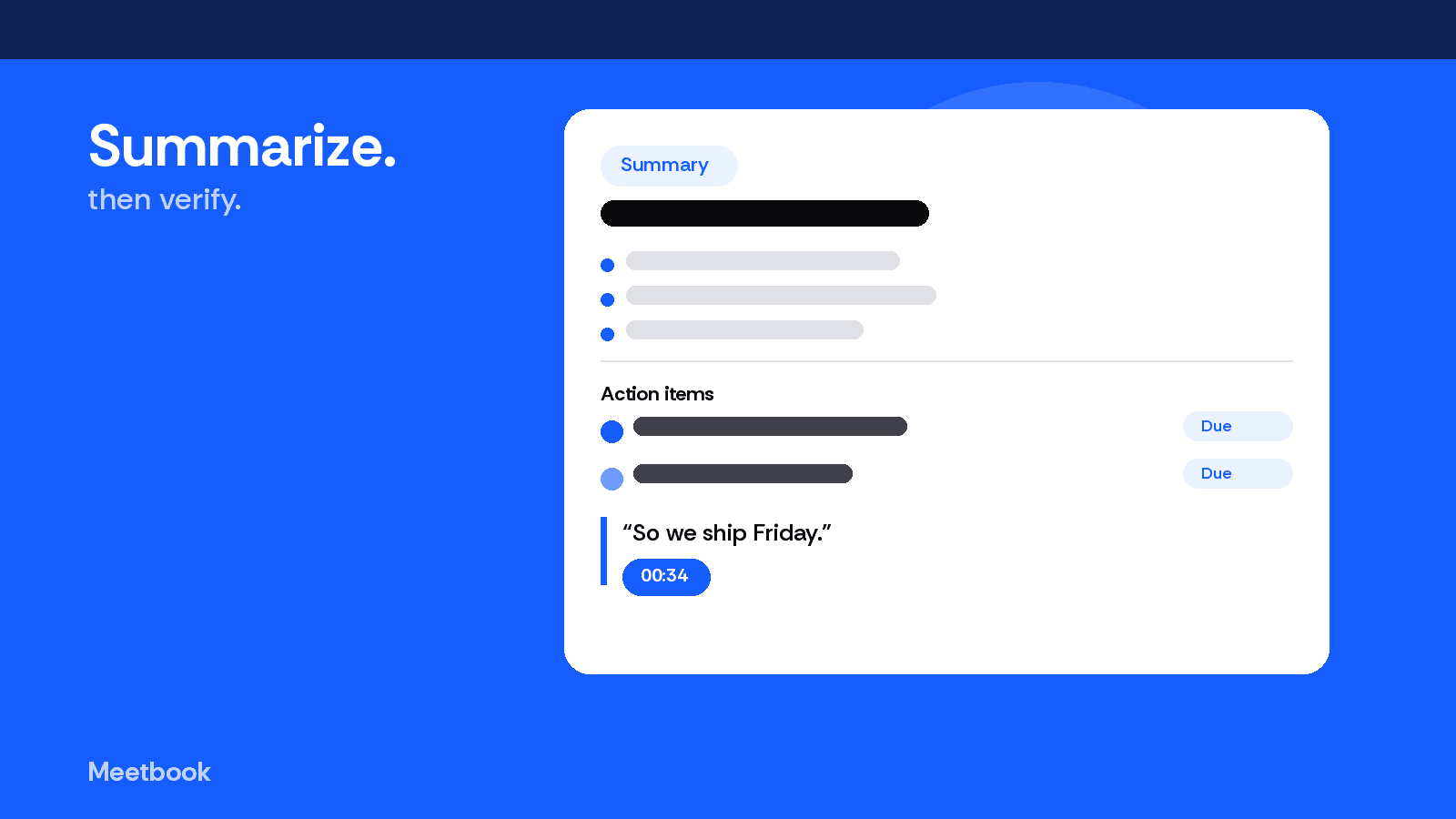
Meetbook works this way. The Chrome extension records the meeting tab, so there's no extra participant in the room. When the call ends you get a summary, an outline, and action items with owners. And unlike a summary you have to take on faith, every point comes with the quote it was pulled from, the speaker, and a timestamp. If a summary line says "agreed to extend beta a week," you can click it and hear exactly who said that and when.
That's the difference between a summary and a record. A summary tells you what happened. A summary with quotes tells you what happened and lets you check it.
Meetbook records Zoom the same way it records Google Meet and Teams, and it transcribes live in about 50 languages. The free tier covers 300 minutes a month with no card; Solo is $13.99 a month and Business is $29.99 per seat, with a 14-day trial and 25% off annually. If you haven't set up recording yet, start with how to record a Zoom meeting, and if you're weighing Zoom's own assistant against the rest, the Zoom AI notetaker guide walks through the setup, cost, and privacy side.
What a good summary actually contains
Whichever way you produce it, a summary is only useful if it answers four questions:
- What was the point of the meeting?
- What did we decide?
- Who is doing what, and by when?
- What's still open?
If it doesn't name an owner and a date on every action item, it isn't done. That's the part that fails most often: not the prose, the accountability.
Pick the method that fits your seat
If you host paid-plan Zoom meetings all day and turn AI Companion on at the top, use it. If you're a participant, or on the free tier, or you want every summary point traceable to the exact moment it came from, run a notetaker that doesn't need the host's permission. The only bad option is none at all: closing the call and trying to remember it forty minutes later.