Meetbook Now Remembers Every Voice, Not Just Every Meeting
You know the drill. Thirty seconds into a call, someone unmutes and says "sorry, who's speaking?" Or worse: you open a transcript from last week and it's a wall of "Speaker A" and "Speaker B" — technically accurate, practically useless, because you have no idea which one was your prospect and which one was their VP of Engineering.
We fixed that. Permanently, not just for the meeting you're in.
The old way: every meeting starts from zero
Meetbook has always been able to tell voices apart inside a single call — that's speaker diarization, and it's been solid for a while. The gap was continuity. Label someone "Priya" in Tuesday's stand-up, and Meetbook forgot her by Thursday's client call. Every transcript was an island. If your team ran fifteen meetings a week with overlapping attendees, you were doing the same labeling work fifteen times.
The new way: label someone once, and it sticks — everywhere
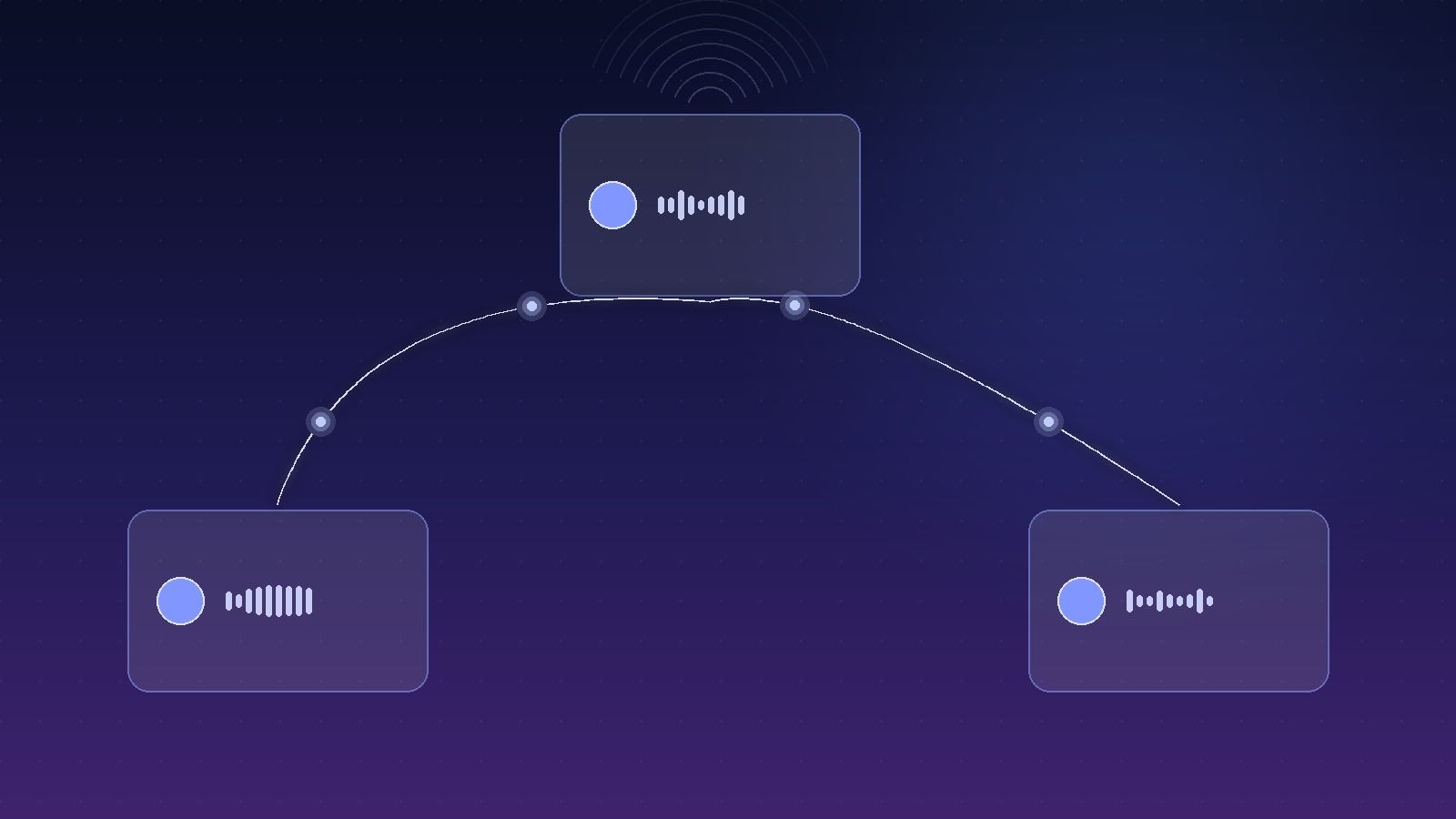
Now, the moment a voice is tied to a name — because Meetbook already knows them from your calendar invite, or because you typed their name in once — that identity travels with them. The next time that person opens their mouth in a completely different meeting, on a completely different day, Meetbook already knows who they are. No relabeling, no guesswork, no "who is Speaker C again."
Here's the part we're actually proud of: it doesn't wait for a name to start working. Meetbook is quietly fingerprinting voices in the background from the very first meeting someone joins, long before anyone types a name. If an unnamed voice shows up in three separate meetings this month, Meetbook already knows it's the same person — it just doesn't have a name for them yet. The instant you name that person in any one of those three meetings, all three update at once. Retroactively. You're not just fixing the future; you're fixing the past.
It follows the person into their action items, too
This is the detail that saves the most real time. Assign someone an action item and their name changes later, or gets corrected — every task tied to that voice updates automatically, everywhere it appears. Your project tracker stays accurate without you hunting down every "Speaker B is responsible for the contract redline" and manually swapping in a real name.
On by default. One toggle if you'd rather not.
Every workspace has this turned on already — there's nothing to configure. If your team would rather Meetbook not build a voice history (some teams have good reasons: strict compliance requirements, high guest-attendee turnover, general caution), it's a single switch in Workspace Settings → Remember speaker voices. Flip it off and Meetbook goes back to treating every meeting as a clean slate.
How it actually works
Under the hood, this runs on a speaker-embedding neural network — the same class of voice-fingerprinting technology used in call-center and security applications, tuned for the messier reality of everyday meetings (bad mics, crosstalk, someone eating lunch on camera). Rather than betting everything on one audio sample, Meetbook keeps a rolling set of a person's most recent voice clips and continuously refines its model of how they sound. Practically, that means recognition gets more accurate the more meetings someone attends — a colleague you meet with twice a week gets identified more reliably than someone who joined a single kickoff call three months ago. The system improves with use instead of decaying with time.
Why this matters more than it sounds like it should
Meeting notes are only as useful as they are searchable, and searchable notes depend on knowing who said what. "Remember speaker voices" is a small feature with a large multiplier: every transcript, every summary, every action item, every future search through your meeting history gets more accurate, automatically, without anyone on your team doing extra work. That's the whole point of Meetbook — the less manual upkeep it takes to keep your meeting record trustworthy, the more you actually use it.
It's live now, on every plan, in every workspace. Go check Workspace Settings if you want to see it — or just join your next meeting and watch the names show up on their own.